Fun with CollectionViews

Silverlight LogoI've recently been looking at the PagedCollectionView class. For those who are not familiar with this class, it allows you to automatically show sections of a collection in a paged way (especially when paired with the PagerControl). There is a good example on MSDN here:

http://msdn.microsoft.com/en-us/library/system.windows.data.pagedcollectionview(VS.95).aspx

The PagedCollectionView class supports the ICollectionView interface that supports a number of features that are really useful for dealing with collections.  These include:

  • Sorting
  • Filtering
  • Grouping

To show this, I decided to start with a simple DataGrid.  I created the PagedCollectionView and wrapped my data collection in it like so (GameList is a simple collection of a Game class to show some data):

PagedCollectionView view = 
  new PagedCollectionView(new GameList());

Then when data binding, I simple do the binding directly to the view instead of the collection:

theGrid.ItemsSource = view;

Using the PagedCollectionView as a wrapper for your collection provides the functionality of sorting, grouping and filtering to your collection. Let's start with sorting. 

The ICollectionView interface has a SortDescriptions collection that is used to set the sort for the view. For example, to sort our collection by ReleaseDate then Name, we can add two SortDescription objects to the collection:

view.SortDescriptions.Clear();

view.SortDescriptions.Add(
  new SortDescription("ReleaseDate", 
                      ListSortDirection.Descending));

view.SortDescriptions.Add(
  new SortDescription("ProductName", 
                      ListSortDirection.Ascending));

In our DataGrid, both columns will mark themselves with the sort markers to indicate the search. You can reverse this if you need to detect the changes in sorting that happens when the user clicks on the columns to sort.  You can do this by registering for the CollectionChanged event and looking at the SortDescription collection:

view.CollectionChanged += view_CollectionChanged;

...

void view_CollectionChanged(object sender, 
  NotifyCollectionChangedEventArgs e)
{
  foreach (var s in view.SortDescriptions)
  {
    MessageBox.Show(
      string.Concat("Sorting is: ", 
                    s.PropertyName, 
                    " - ", 
                    s.Direction));
  }
}

The ICollectionView also exposes the ability to group items in the DataGrid. To add grouping, you simply need to add new GroupDescription objects to the view's GroupDescription list. The only type of GroupDescription that is currently implemented is the PropertyGroupDescription which allows you to group by a property. For example, to group by the ReleaseDate I added a new PropertyGroupDescription like so:

view.GroupDescriptions.Add(
  new PropertyGroupDescription("ReleaseDate"));

In the DataGrid, these groups look like so:
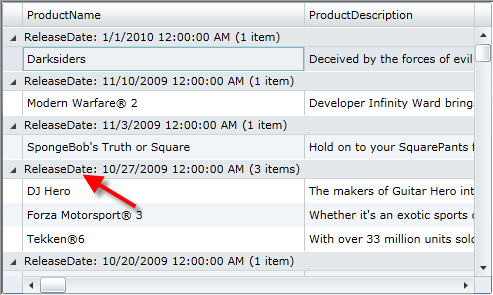
Grouping

The last feature I love about the ICollectionView interface is the ability to do arbitrary filtering. The interface has a Filter property that takes a Predicate<object> object.  This way we can use a simple lambda to perform filtering.  For example, to only show the games that have Microsoft in the name, I just create a simple lambda like so:

view.Filter = g => 
  ((Game)g).Publisher.Contains("Microsoft");

Cool, huh?

Comments:

Gravatar

This looks as sweet as a sugar plant covered in honey! Do the GroupDescriptions and SortDescription properties support binding so this can be used easily with an MVVM model? How easy would this be to hook into the data paging controls from the toolkit?

Gravatar

The PagedCollecitonView is made to work specifically with the data paging controls. Not sure how would need to handle the binding and MVVM though, its just an object so hooking it through the VM should be the same as hooking it through code.

Gravatar

I am using the PagedCollectionView for grouping. I have a DataGrid and a textbox with a search button. The ItemSource of the grid is my PagedCollectionView, and the PagedCollectionView wraps an ObservableCollection because items in the grid can have their bound objects updated by a background process. When you click search, I first clear by ObservableCollection then load it with data from a db. The moment I call clear on my collection, the contents on of the DataGrid disappear, INCLUDING THE COLUMNS. They reappear when items are added to my collection. I would really like the columns and their headers to remain, as when they disappear it is quite jarring, not to mention sort orders, etc are lost. I believe the items disappear instantaneously because it is an ObservableCollection, but I need it to be so that the rows can be updated by the aforementioned background process. If I remove the PagedCollectionView as a wrapper and simply set the ItemSource of the DataGrid to the ObservableCollection, none of this behavior occurs, my columns and headers persist even when the collection is cleared, and my rows update instantaneously by the background process. Has anyone else observed this behavior? Does anyone know any workarounds? Or am I just doing something wrong?

Gravatar

Ryan,

It sounds like you're using autogenerated columns. If so, use non-generated columns.

Gravatar

I am using the PagedCollectionView for grouping. I have a DataGrid and a textbox with a search button. The ItemSource of the grid is my PagedCollectionView, and the PagedCollectionView wraps an ObservableCollection because items in the grid can have their bound objects updated by a background process. When you click search, I first clear by ObservableCollection then load it with data from a db. The moment I call clear on my collection, the contents on of the DataGrid disappear, INCLUDING THE COLUMNS. They reappear when items are added to my collection. I would really like the columns and their headers to remain, as when they disappear it is quite jarring, not to mention sort orders, etc are lost. I believe the items disappear instantaneously because it is an ObservableCollection, but I need it to be so that the rows can be updated by the aforementioned background process. If I remove the PagedCollectionView as a wrapper and simply set the ItemSource of the DataGrid to the ObservableCollection, none of this behavior occurs, my columns and headers persist even when the collection is cleared, and my rows update instantaneously by the background process. Has anyone else observed this behavior? Does anyone know any workarounds? Or am I just doing something wrong?

Gravatar

Hi there..thank for the info...can you inform me how you would apply multiple filters? i have a dropdown box with applys the filter using the same method..

itemListView.Filter = g => ((News)g).Category.Contains("Category A");

However i also have a SubCategory..but obviously when i set

itemListView.Filter = g => ((News)g).SubCategory.Contains("SubCategory A");

the first filter is reset. how would i be able to stack the filters??

Thanks again

Gravatar

hi there,

can you let me knwo how you would apply multiple filters??

Gravatar

Thanks Shawn,
You were correct. I was using autogenerated columns. By turning that off and simply using Blend to pre-generate my columns for me I was able to get around the issue. Thanks again.


Save Cancel